Free shipping

Only 1 left!
Choice English keyboard Tab A11 Plus 11inch Black B Case for Samsung Galaxy Tab A11 Plus 11 Inch, Detachabl
No reviews yet.
Checkout Discount 10% Off
At checkout
74.40 AED
82.67 AED
Free shipping
Delivery address

Select your address, find out the delivery date!
Trendyol's commitments
Easy and free return in 15 days.
Payment methods



Highlighted features:
Choice English keyboard Tab A11 Plus 11inch Black B Case for Samsung Galaxy Tab A11 Plus 11 Inch, Detachabl features
Color
Multicolor
Compatible Brand
Samsung Compatible

Big Save Store
8.8
80.6K followers
Seller information
Similar items











Shoppers also viewed


 Galaxy Tab A11 Wifi 4GB 64GB Gray








Choice English keyboard Tab A11 Plus 11inch Black B Case for Samsung Galaxy Tab A11 Plus 11 Inch, Detachabl reviews
No reviews yet.
Product details

Additional info
- A maximum of 10 units of this product can be ordered. Trendyol reserves the right to cancel orders over 10 units.
- Barcode No: 3673855699091
Choice English keyboard Tab A11 Plus 11inch Black B Case for Samsung Galaxy Tab A11 Plus 11 Inch, Detachabl features
Color
Multicolor
Compatible Brand
Samsung Compatible
Safety information
Product safety information
Product description
Keyboard language:English keyboard
Size:Tab A11 Plus 11inch
Color:Black B
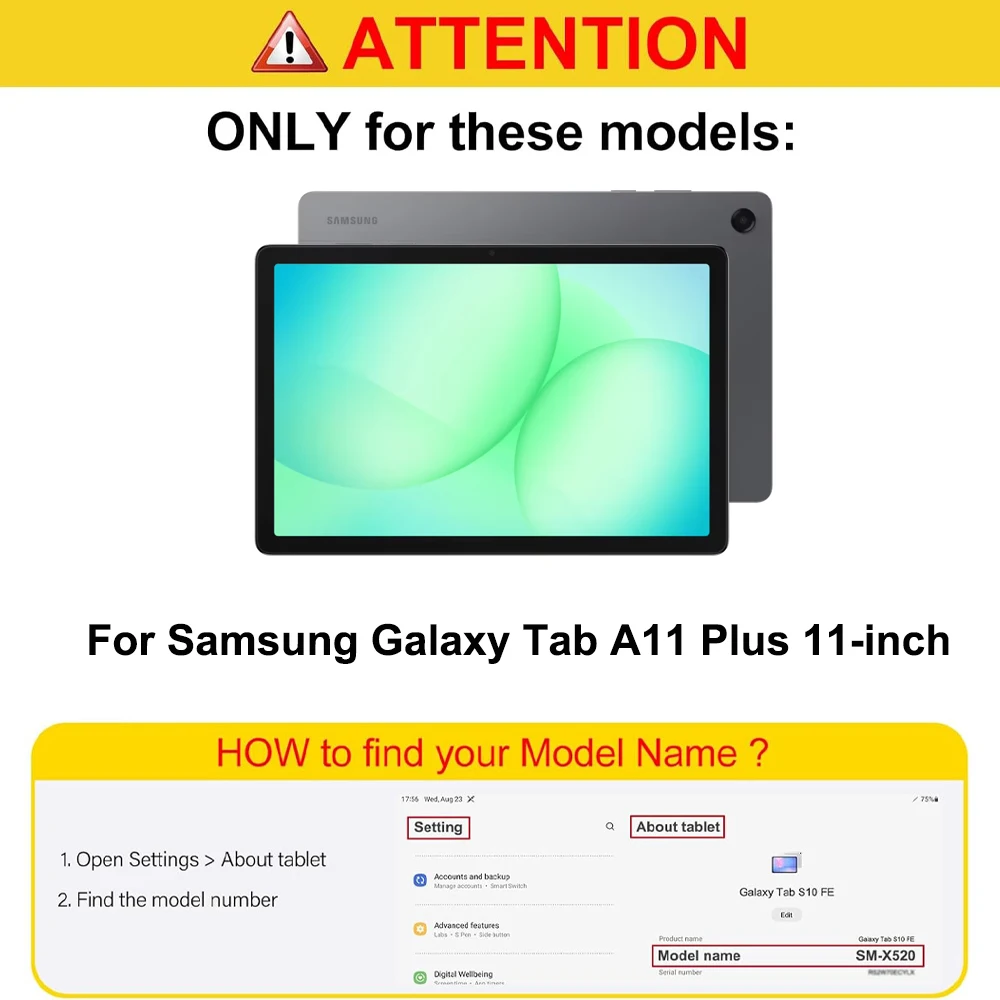
Please confirm your machine model before purchasing~
For Samsung Galaxy Tab A11 Plus 11inch SM-X230/X235/X236B/X236/X310/X315 Tablet.
Please confirm the language keyboard you need
we will customize the engraving keyboard language for you according to your choice
Please confirm each combination of the product before purchasing. Note the first basic image of each color version, which will most accurately reflect the color combination of the product.
Please confirm the keyboard language before purchasing, we will deliver the goods to you according to the color combination you have selected
Note:The digital tablet and stylus are not included in the package. The detailed description is for reference only. Please refer to the actual product for the color of the product.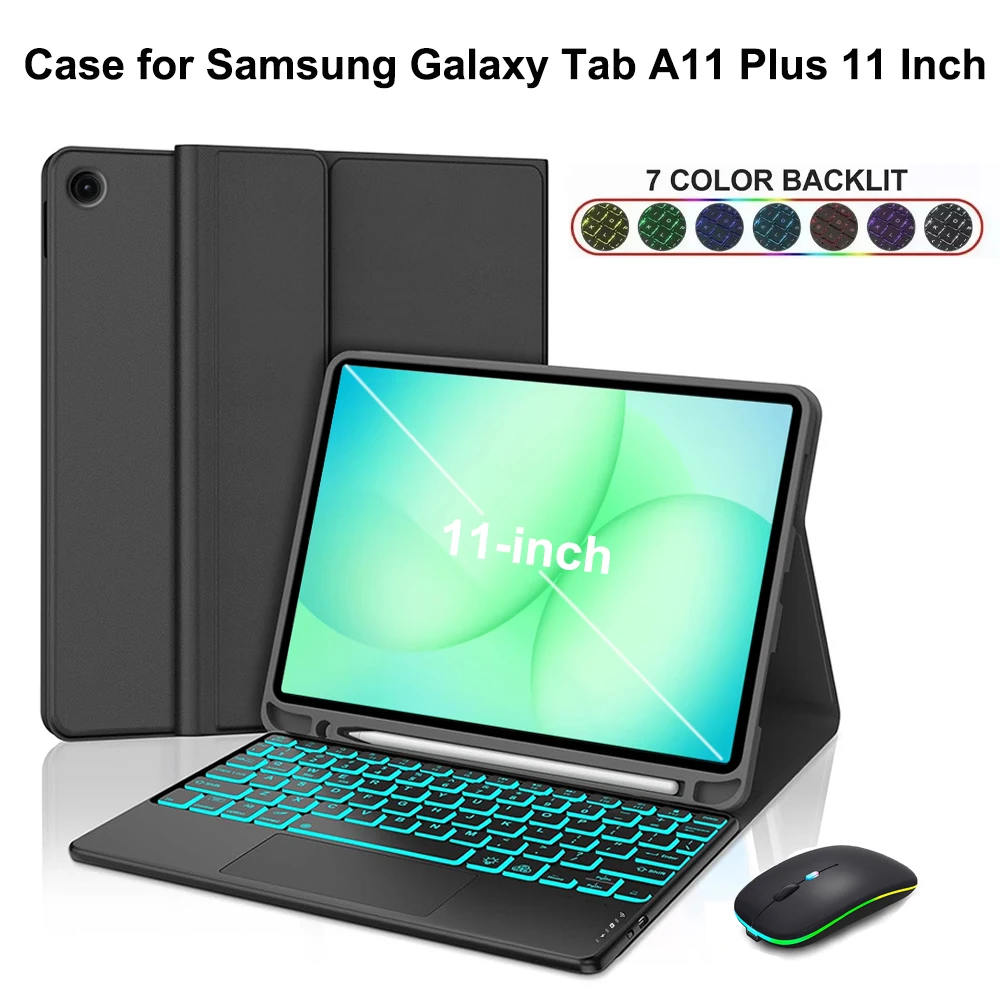
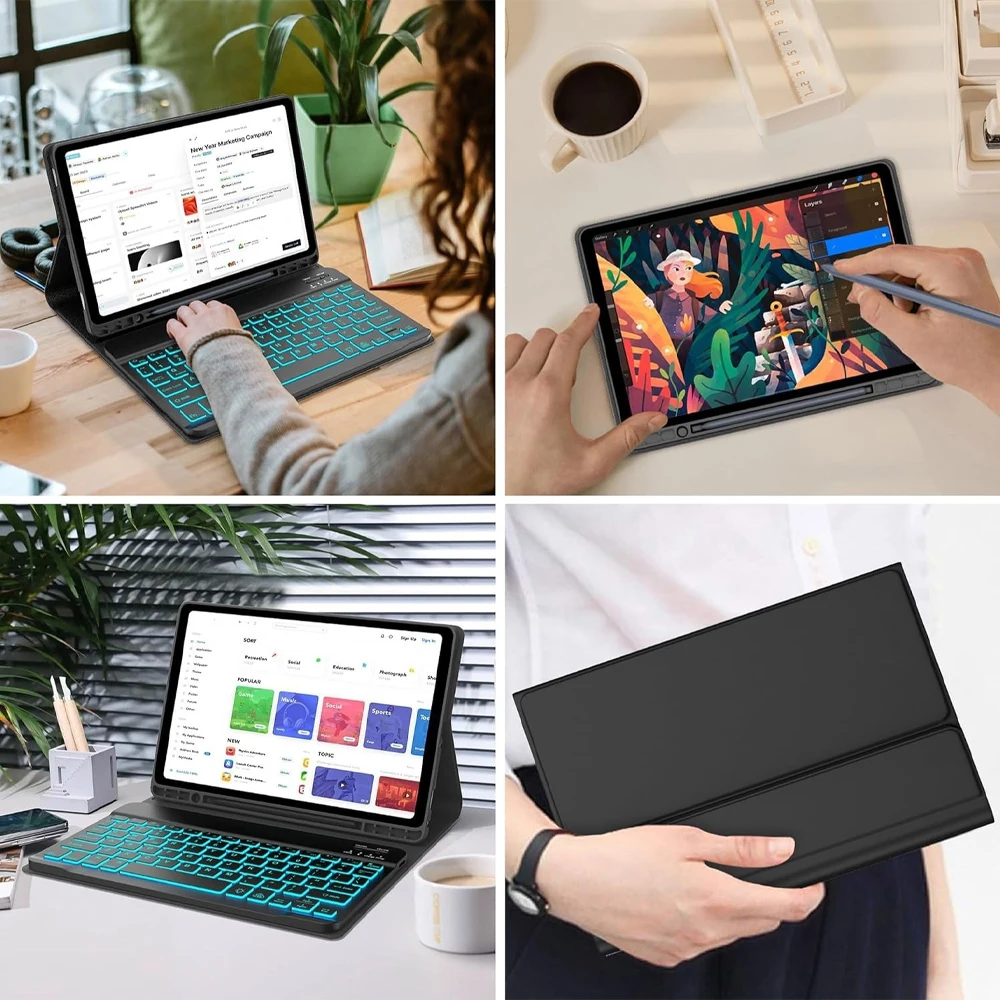
 Office learning business fashion
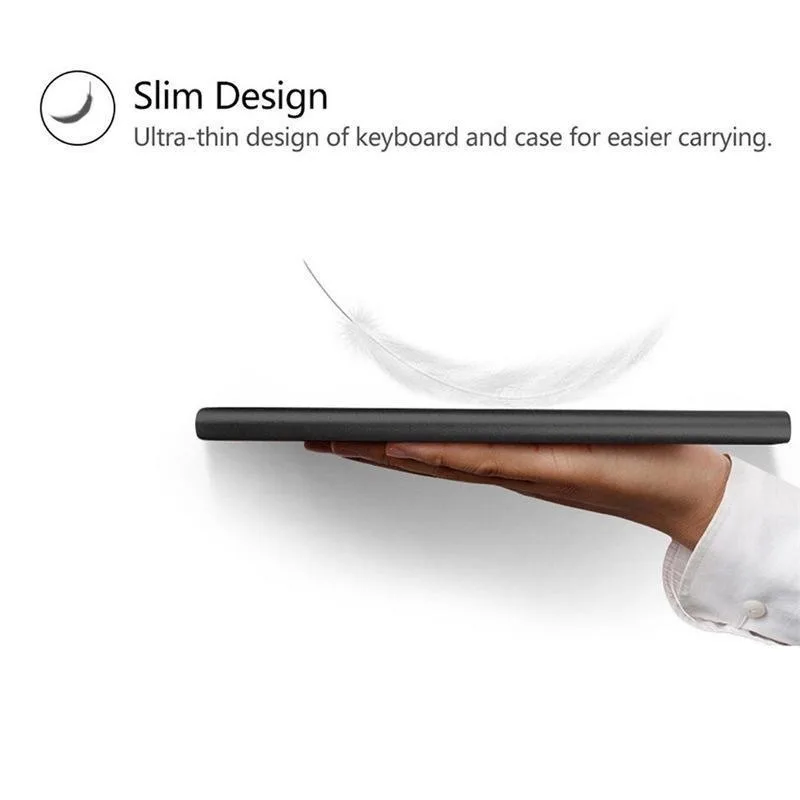
Comfortable solution to your office, study and entertainment needs.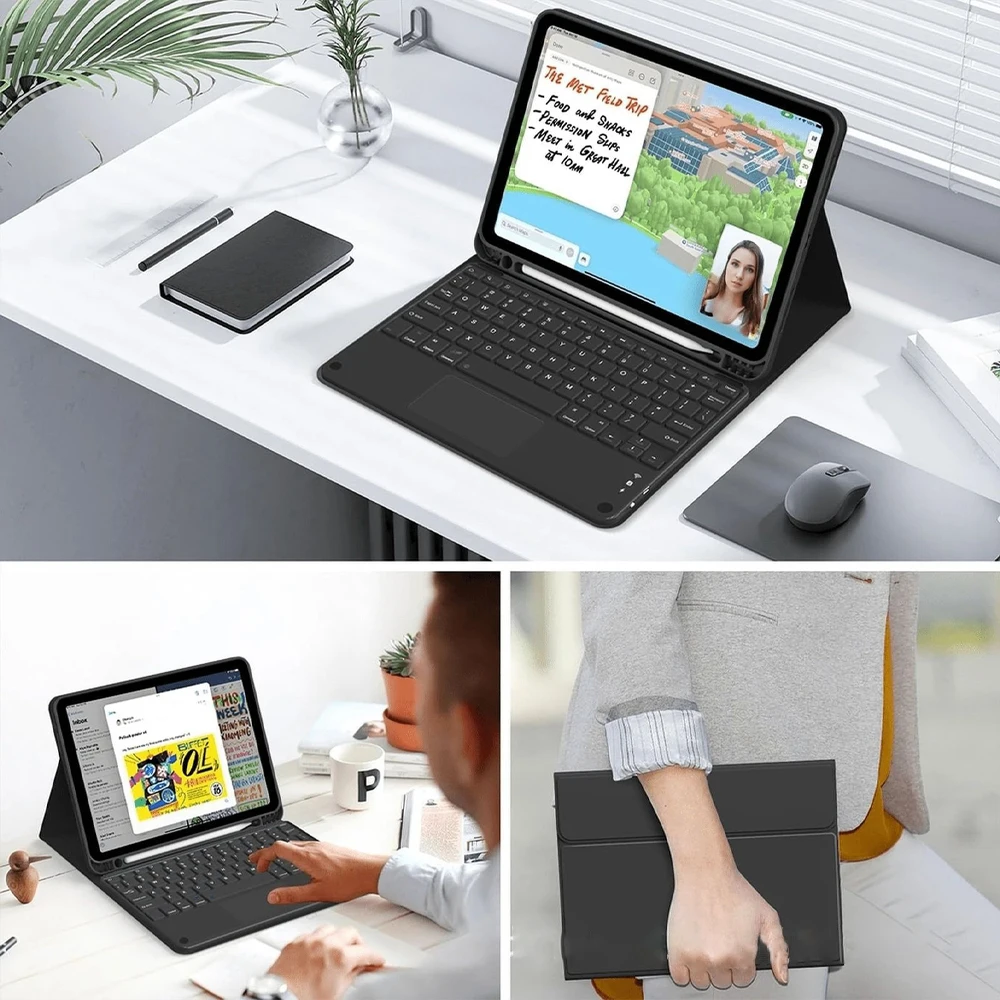
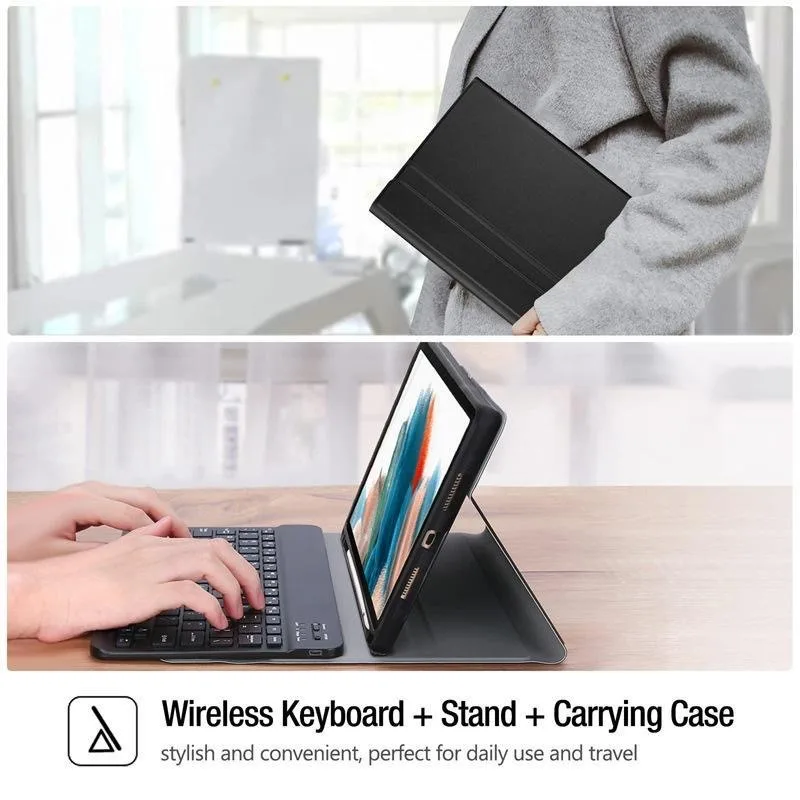
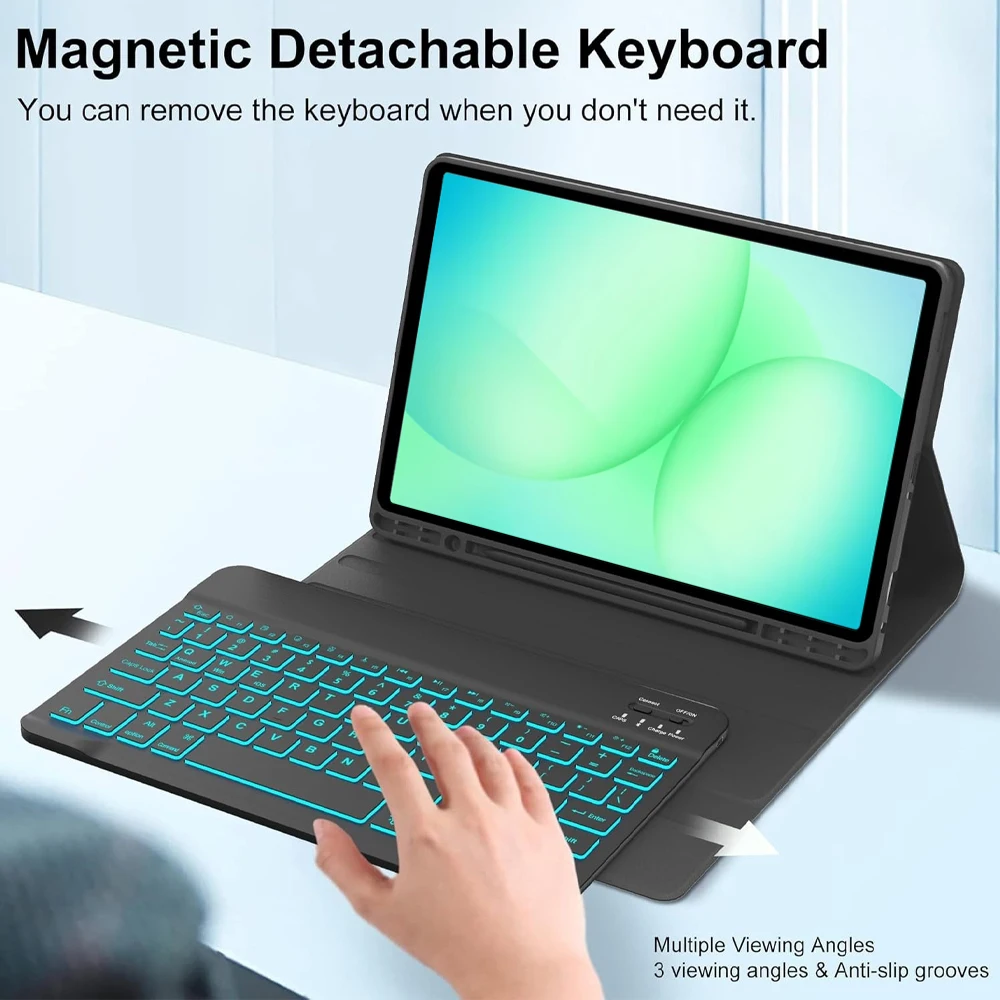
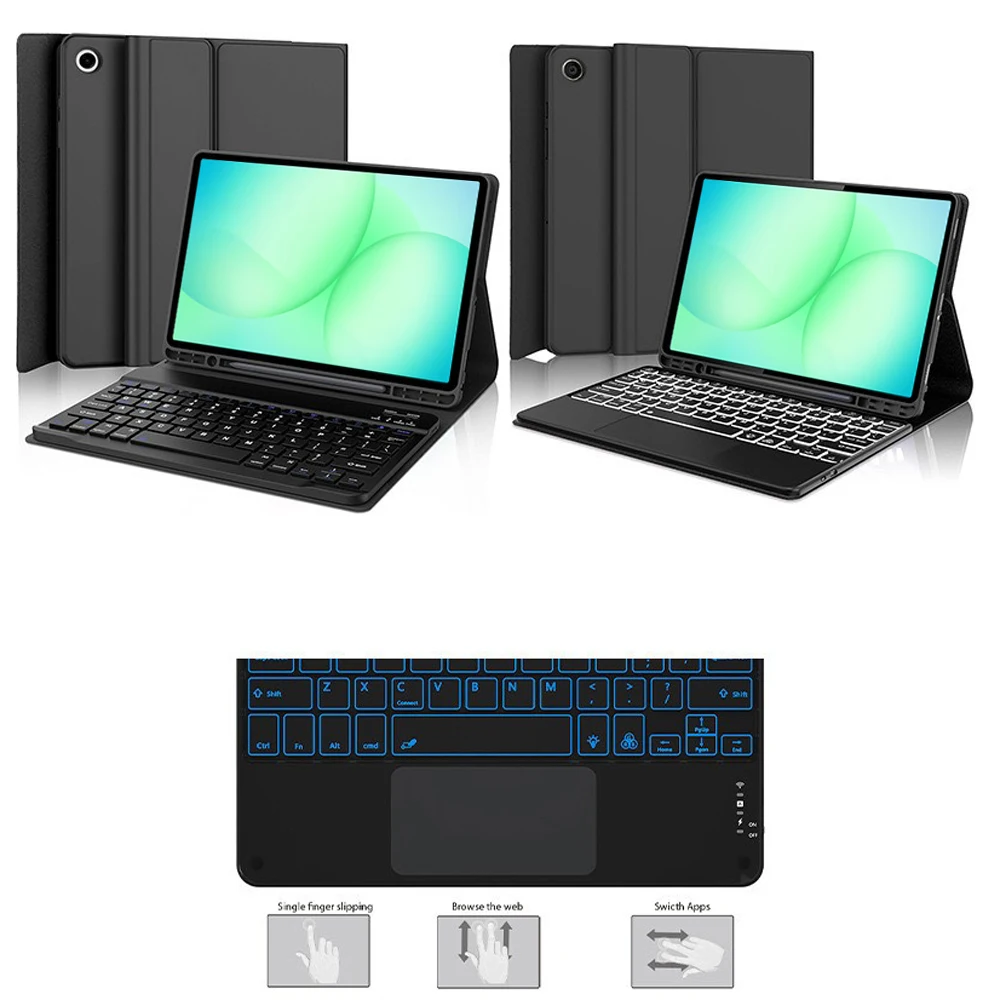
Magnetdesign
Magnetdesign -Verhindern Sie, dass die Tastatur herunterfallt
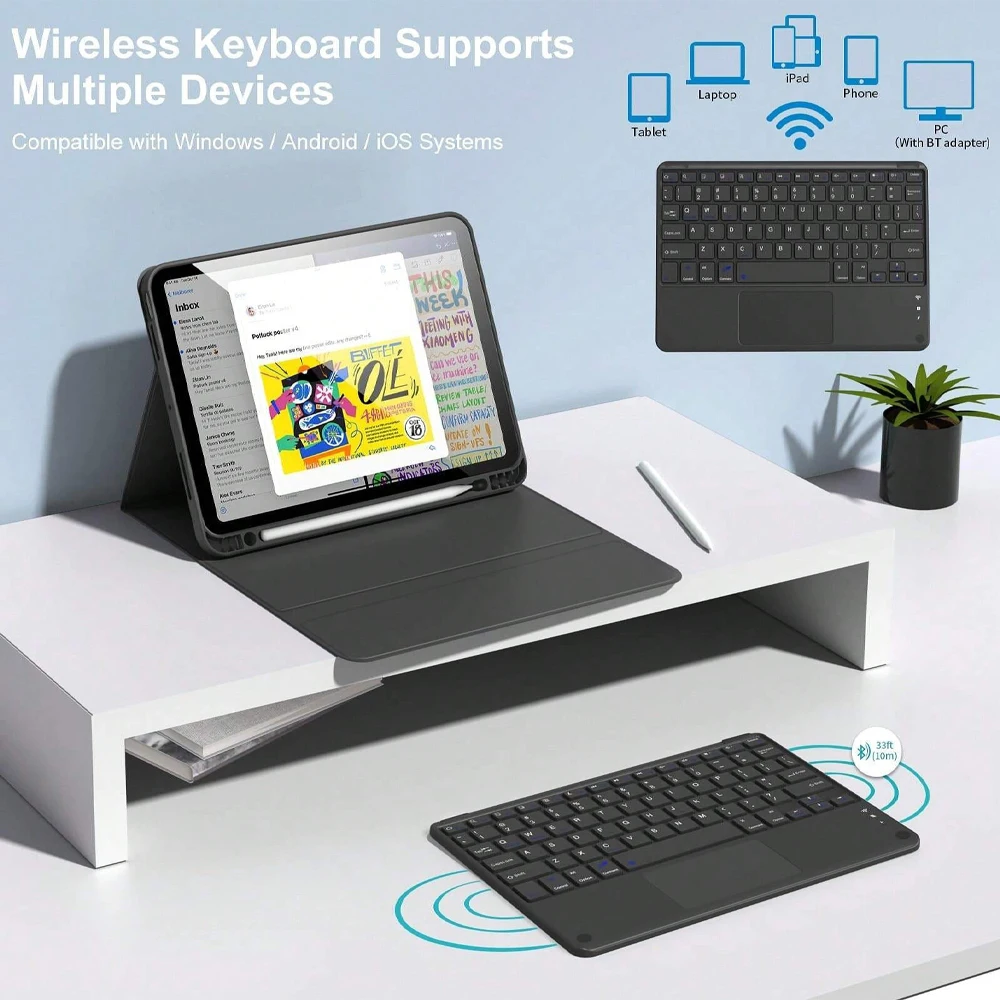
Abnehmbare Bluetooth-Tastatur - kann die Tastatur leicht entfernen
Automatischer Schlaf-/Wake-Energy-Erhaltung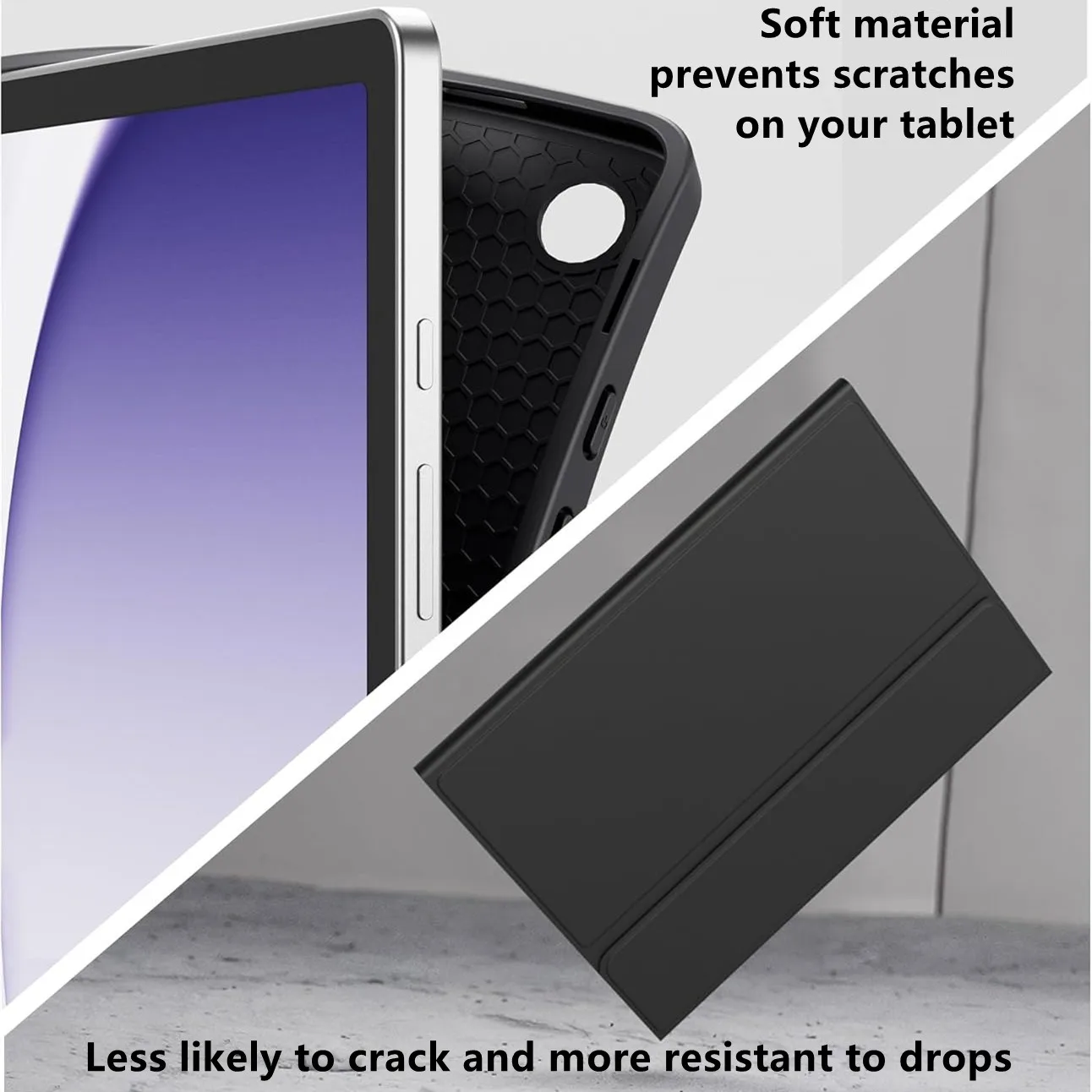

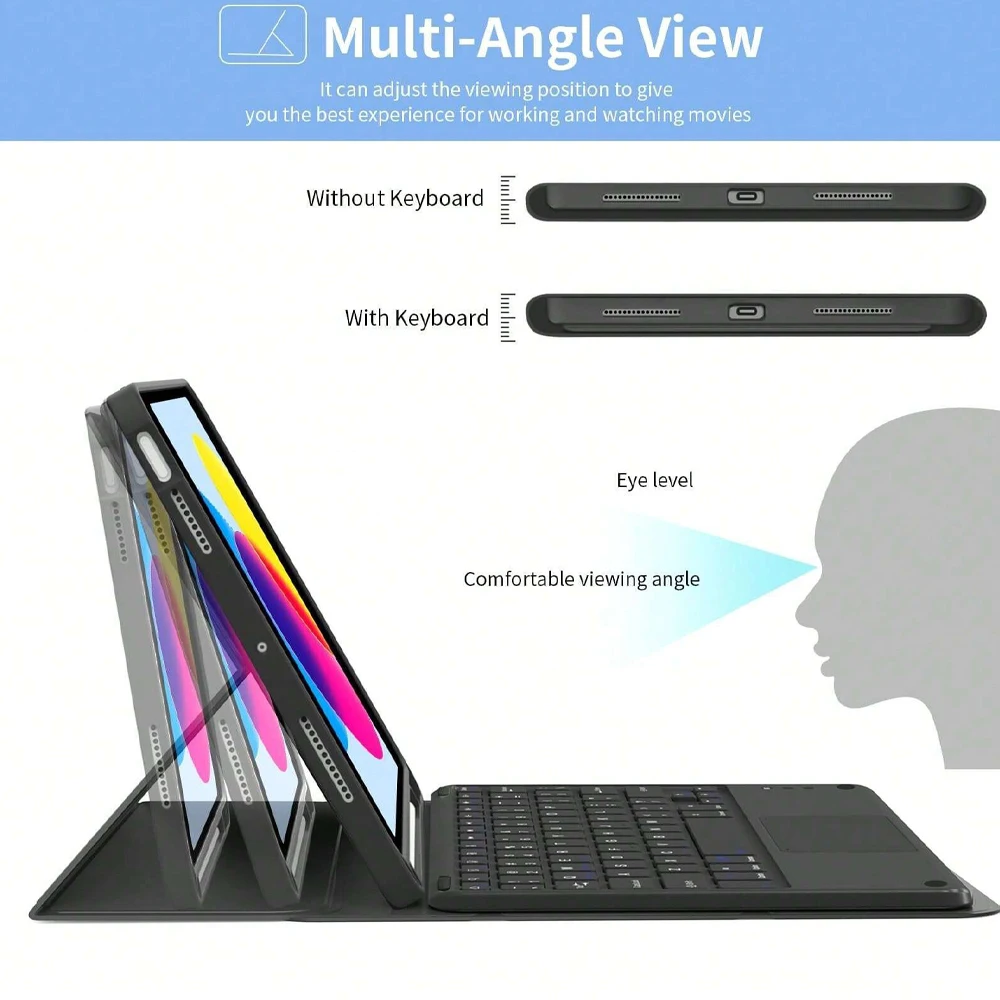
 Triangular stable design
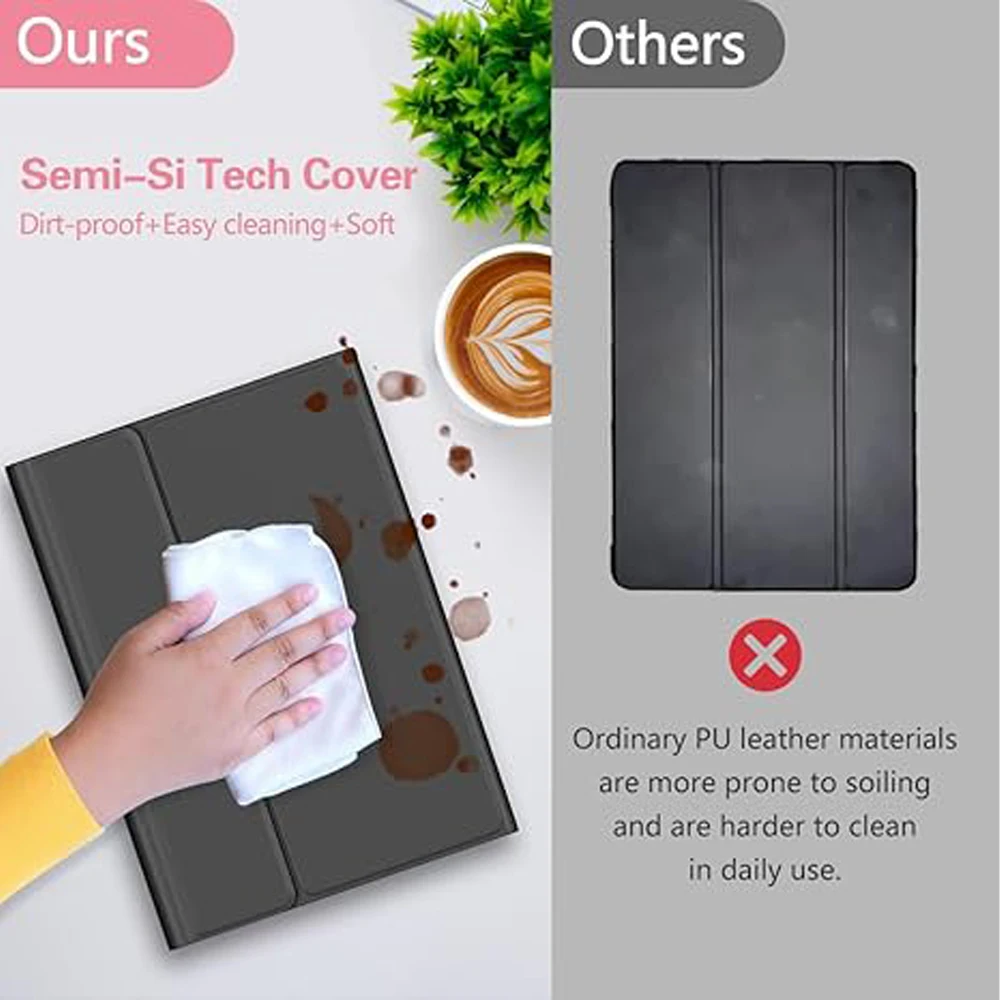
Stable support, anti-slip protection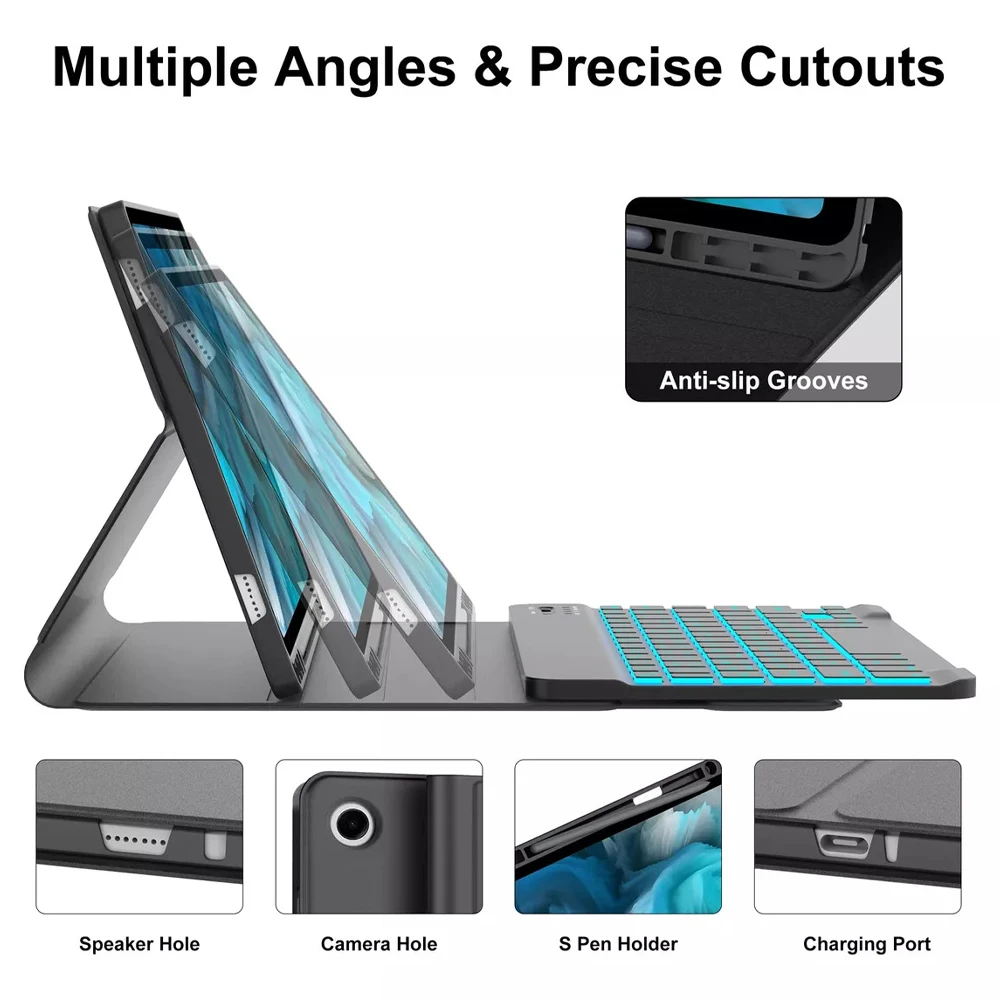
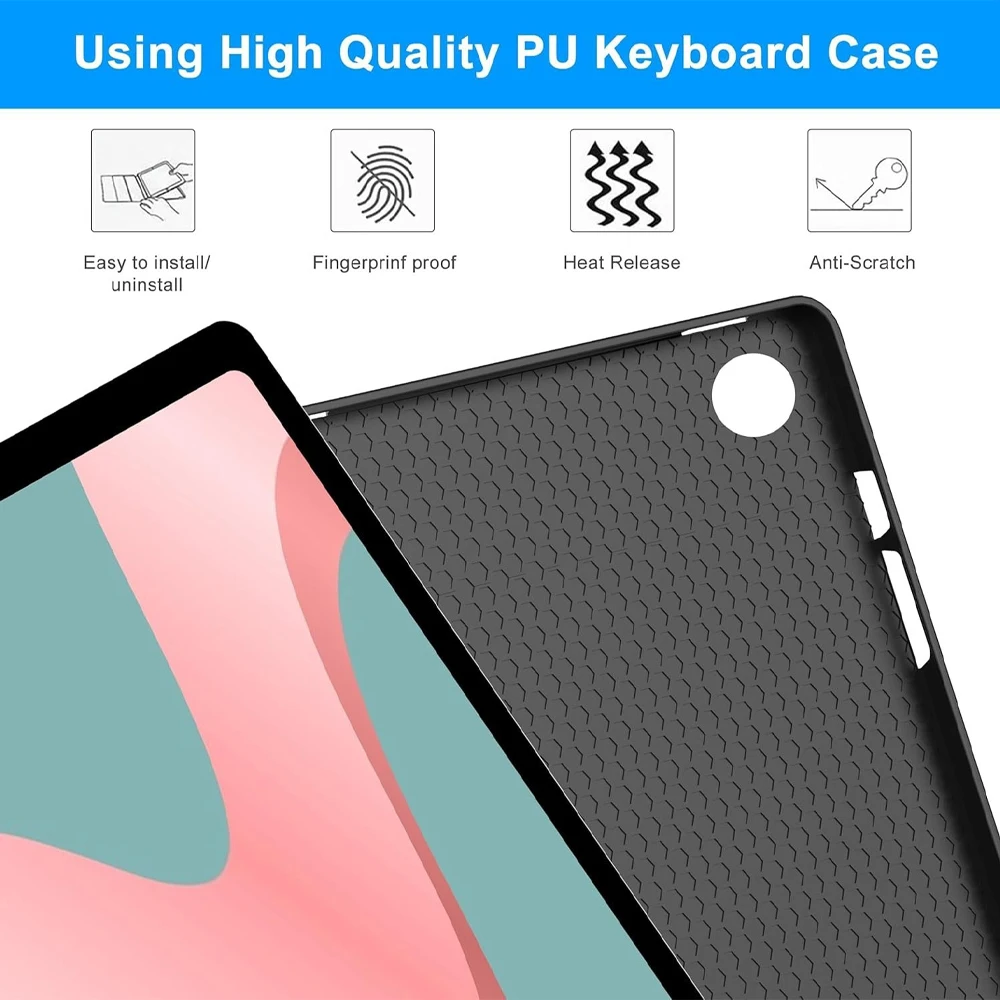
 Honeycomb back design,
great heat dissipation effect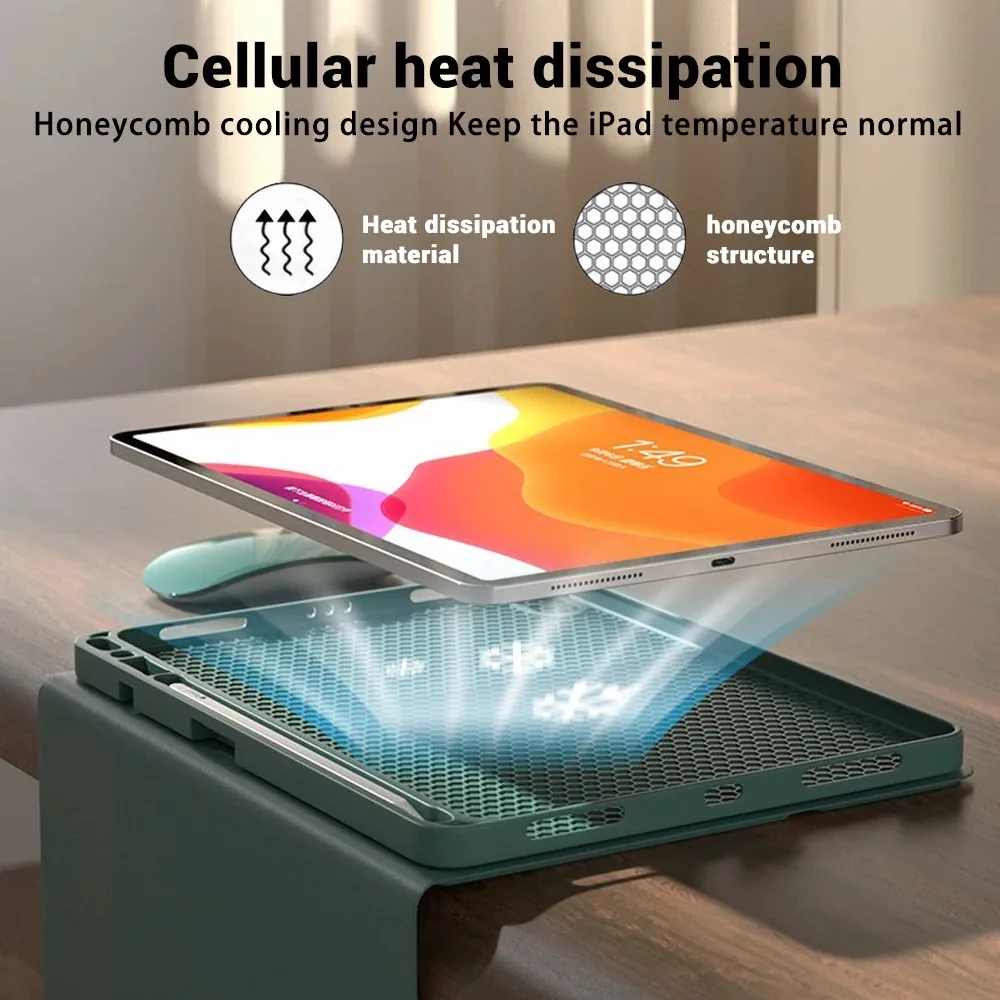
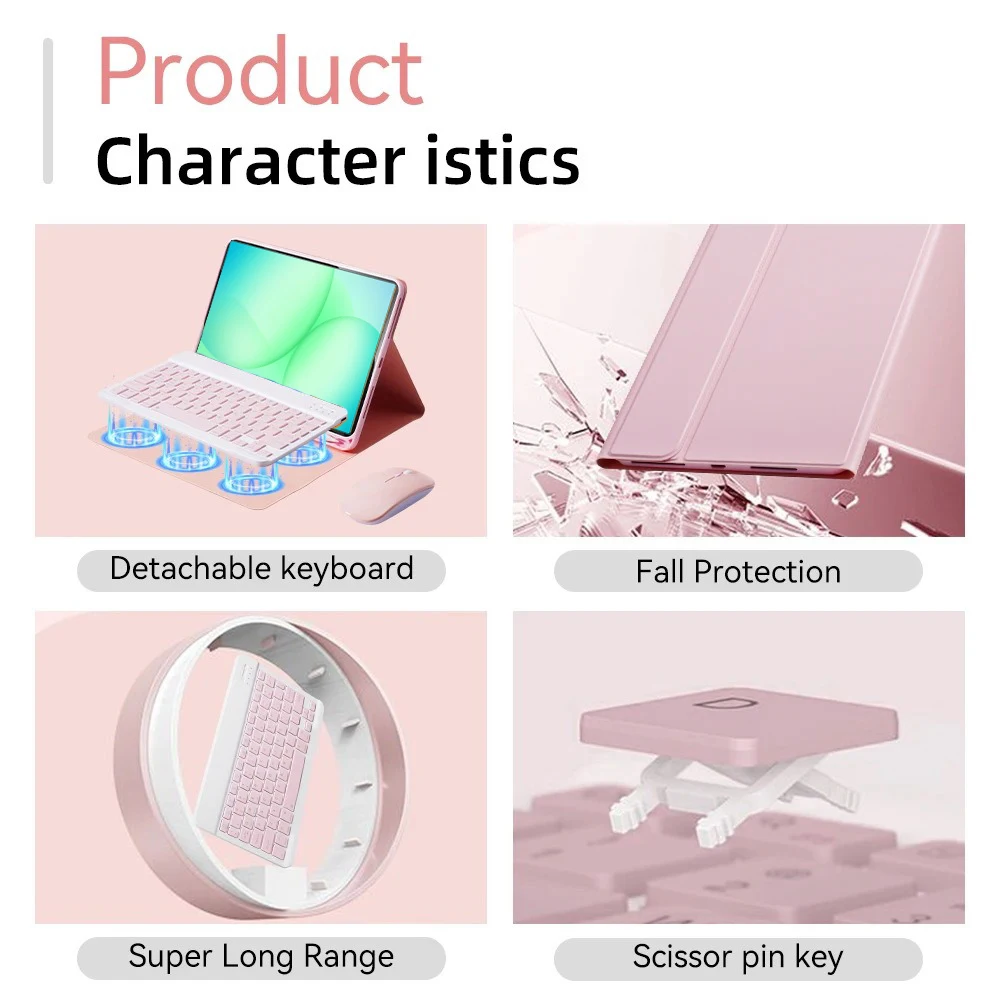
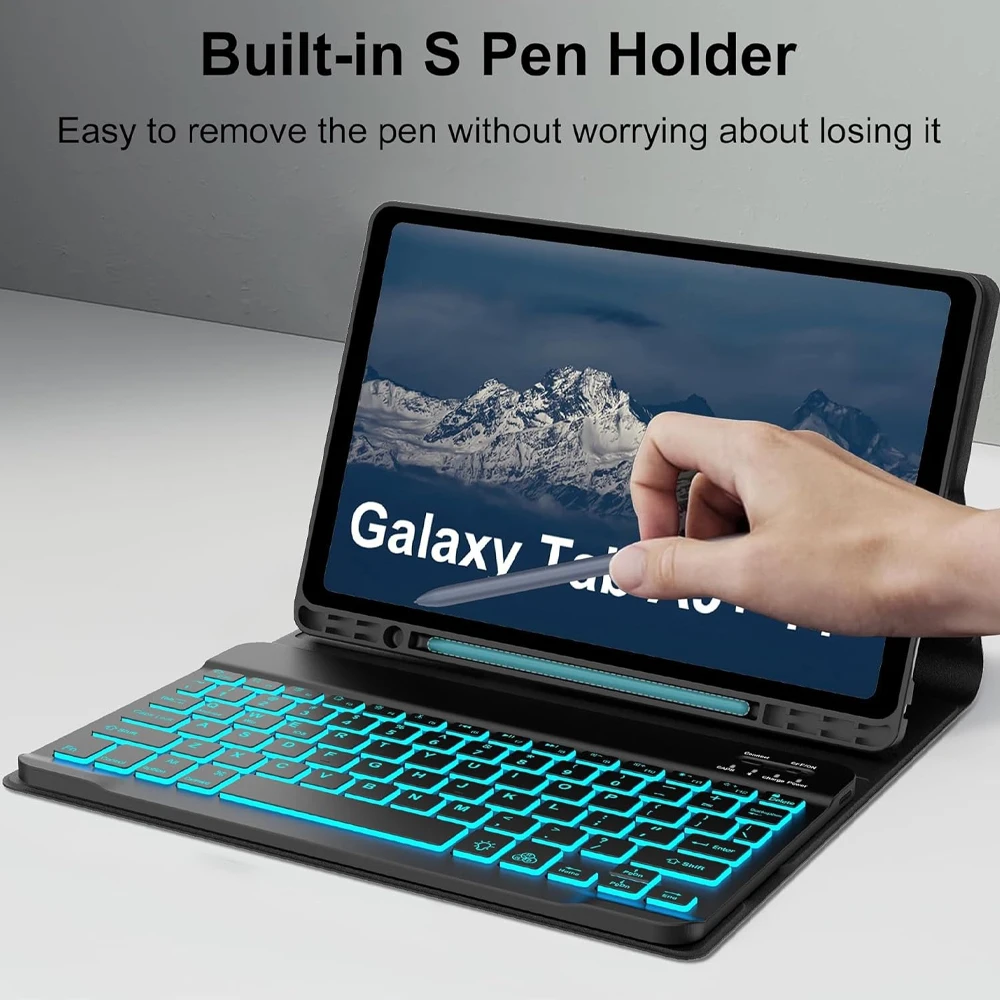
 Backlit keyboard
Switch cool lights at will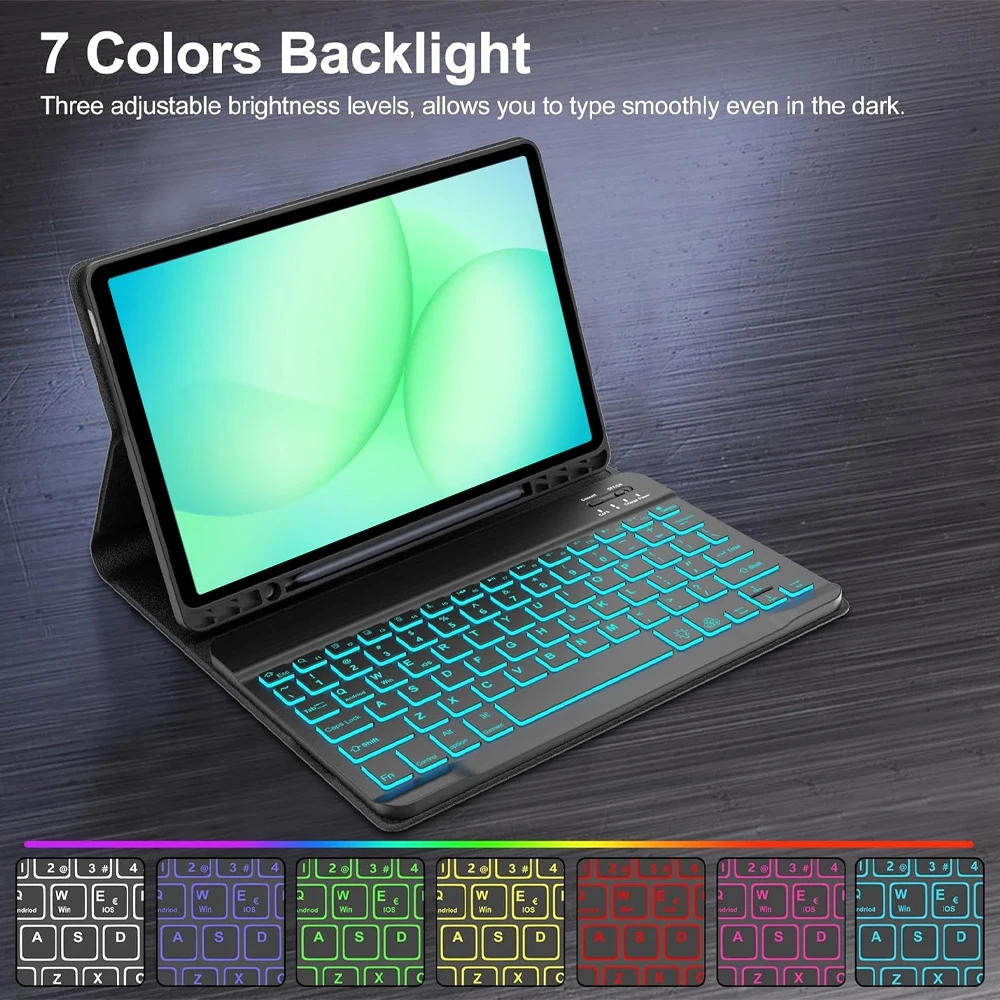
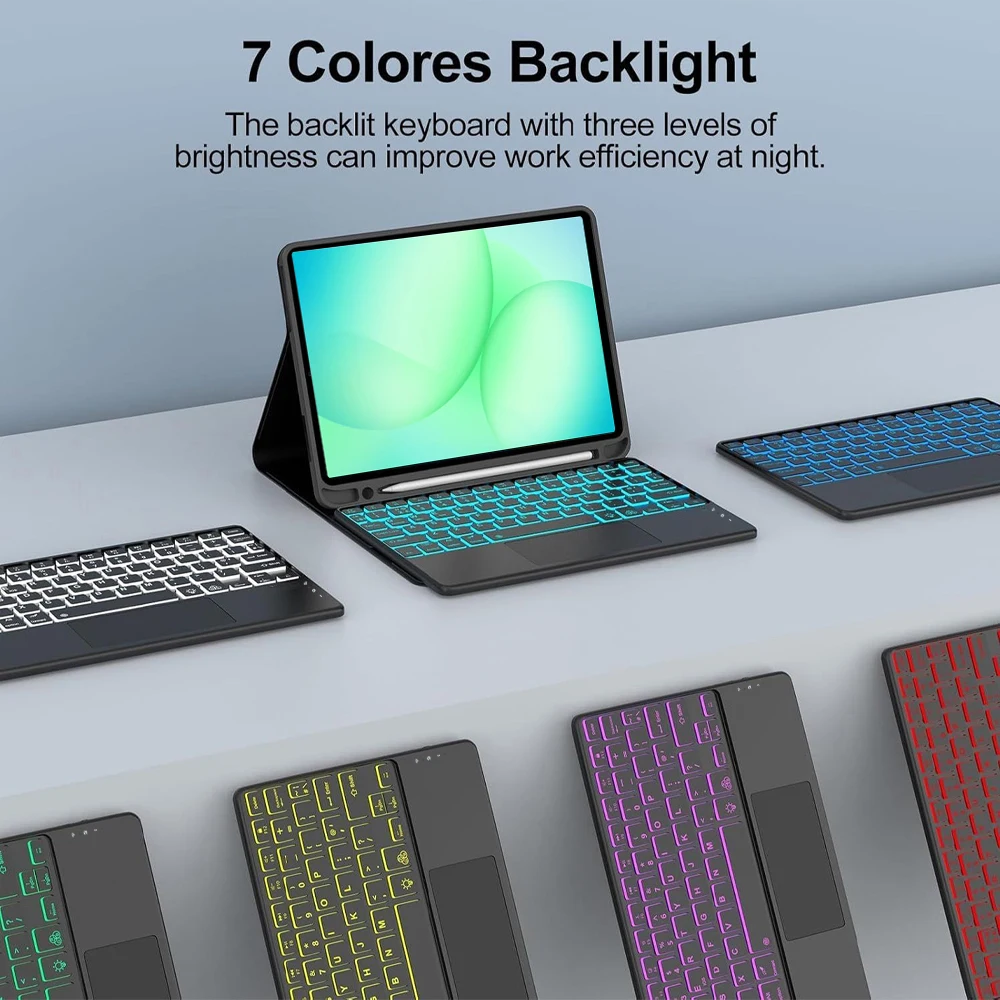

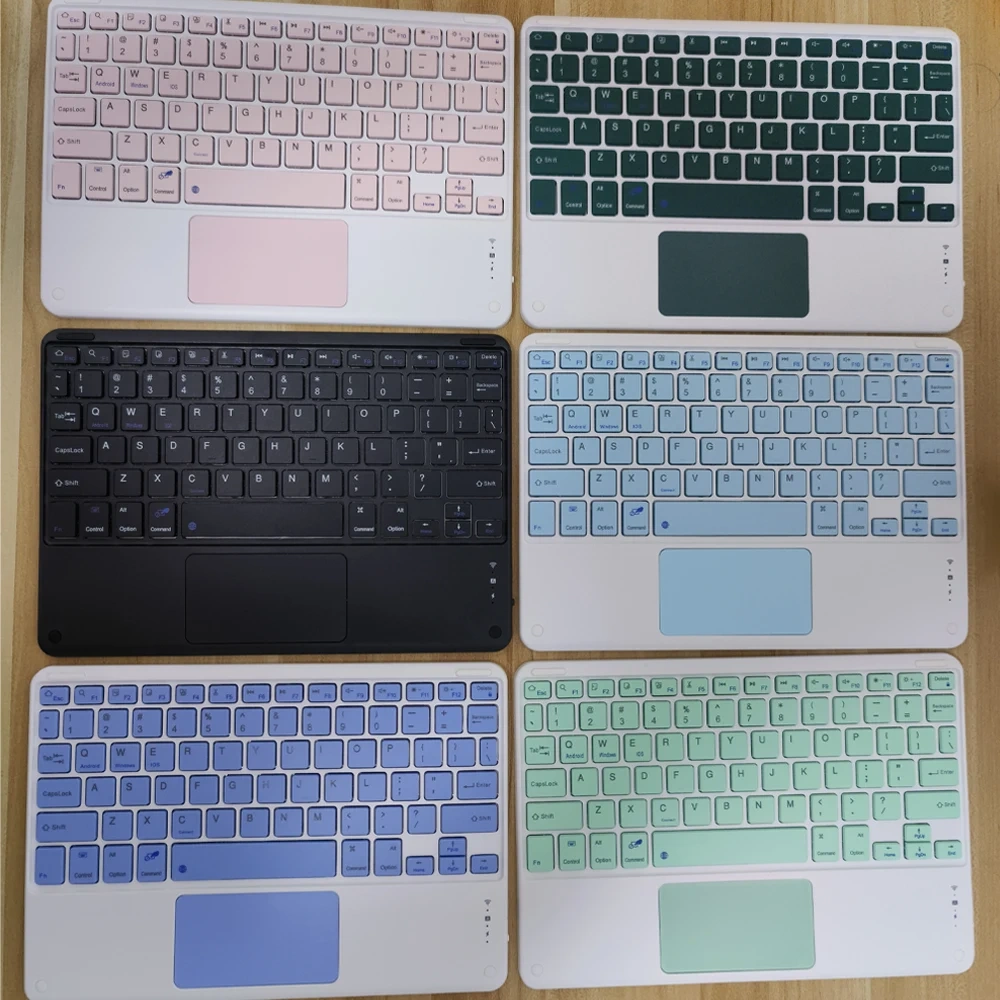
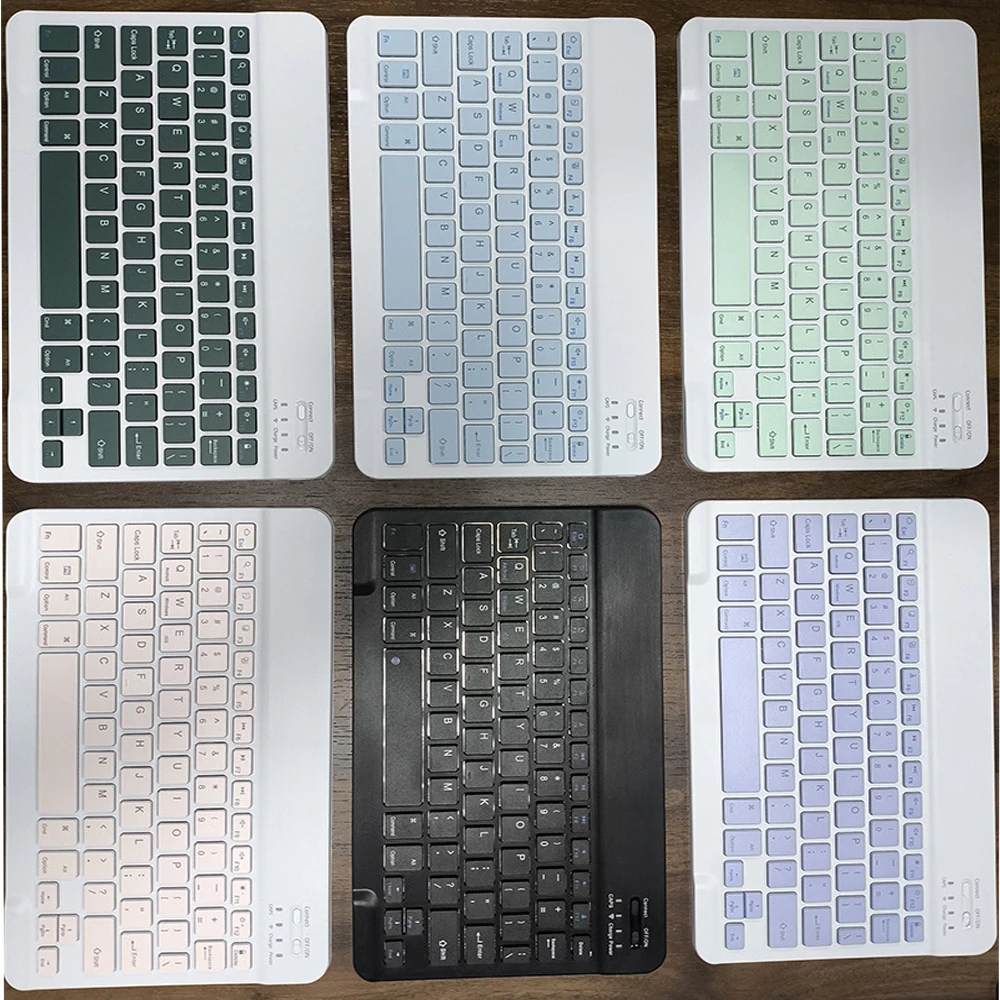
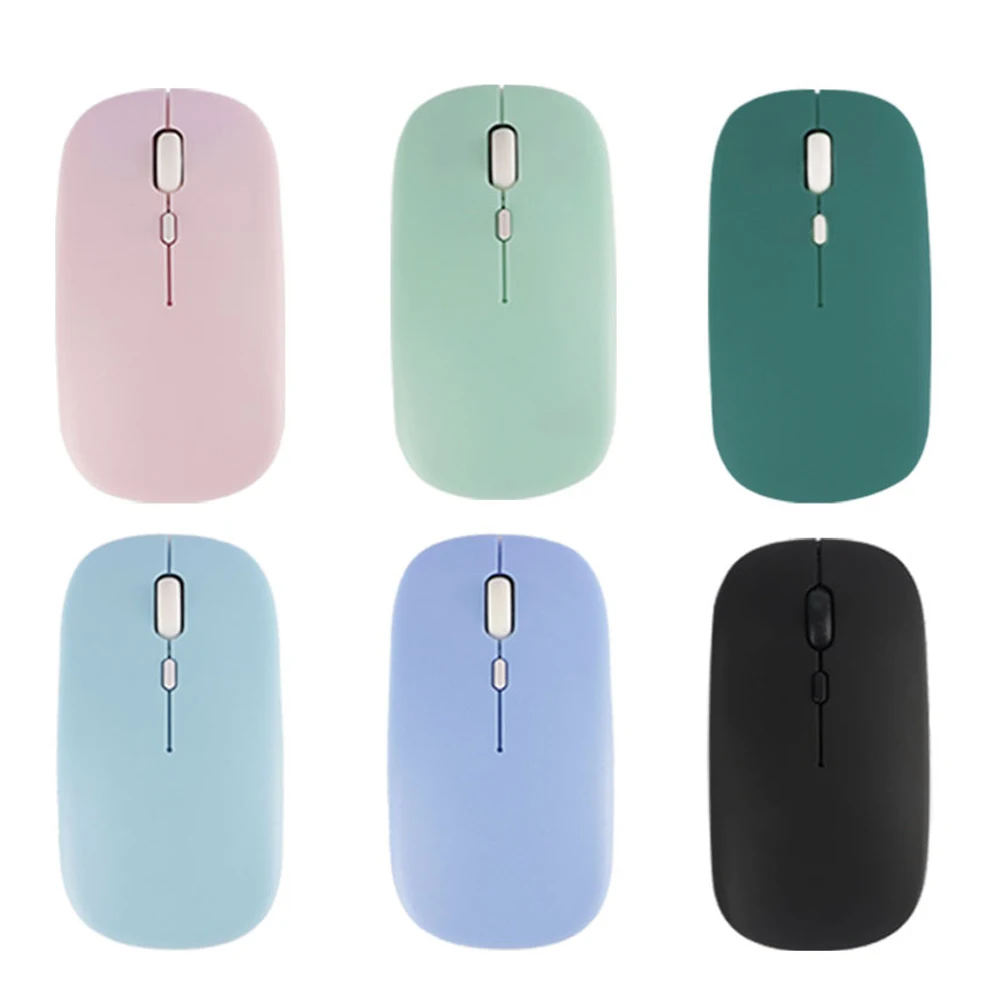
 Colourful
A colour that's just right for you
A wide range of colours to add a touch of chic to your day.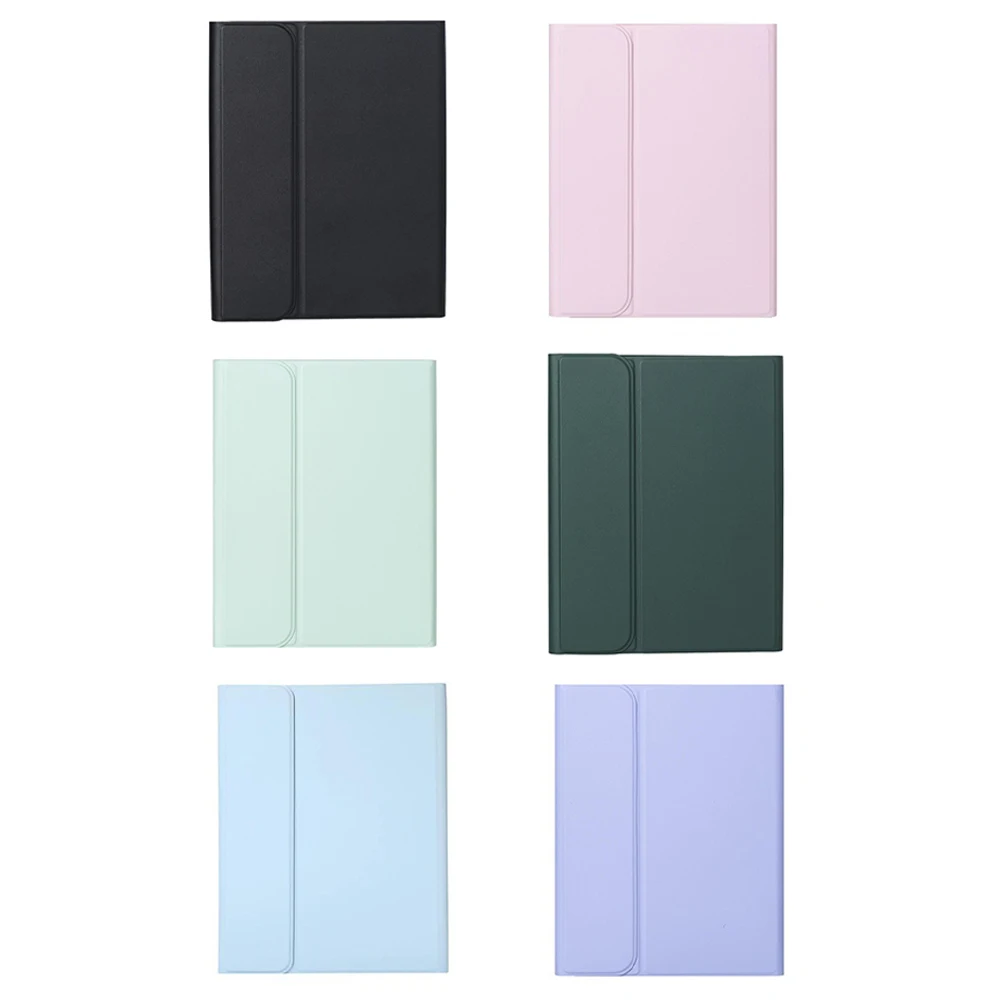
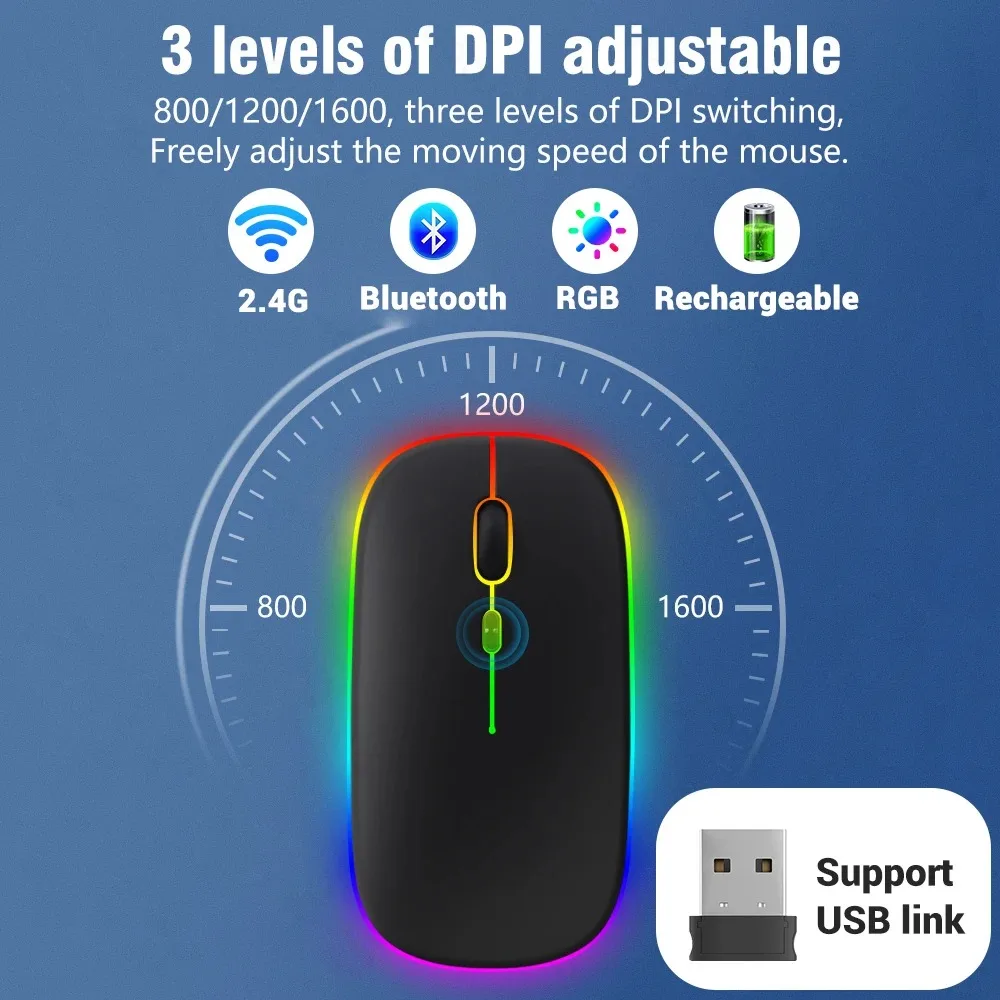
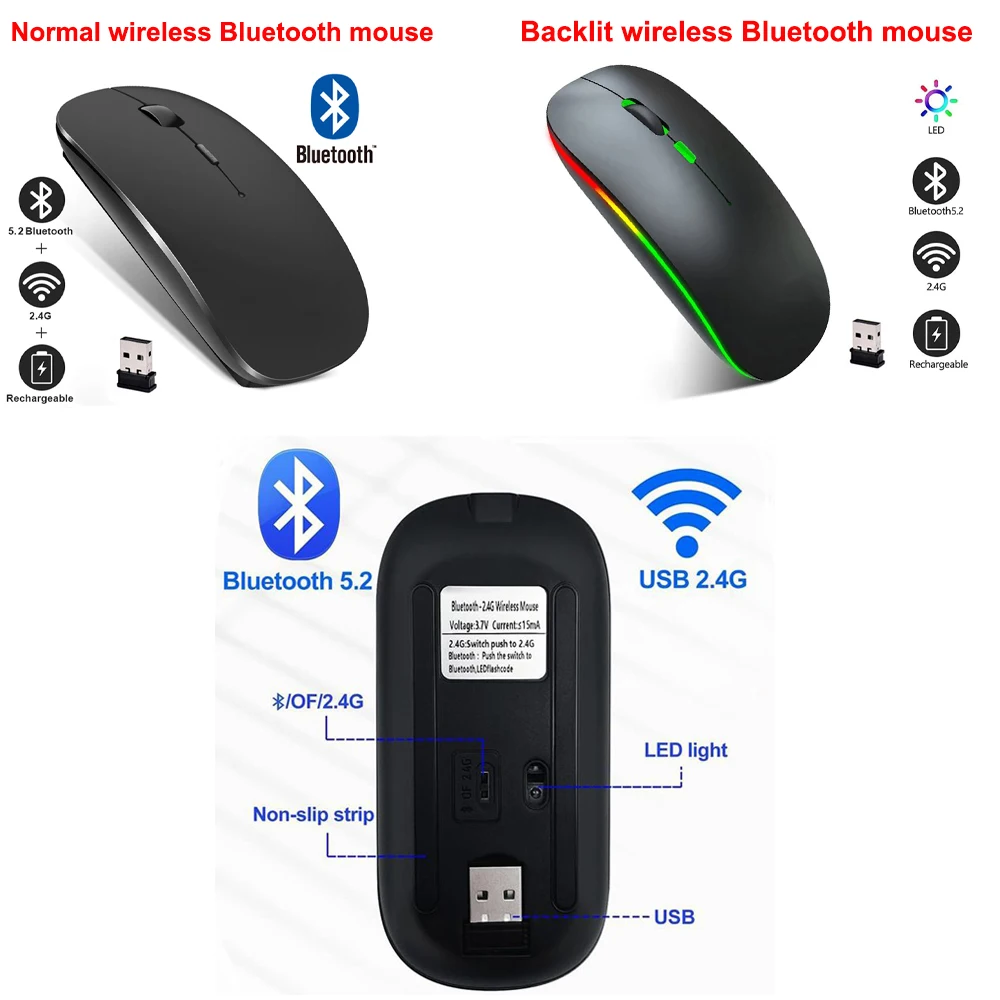
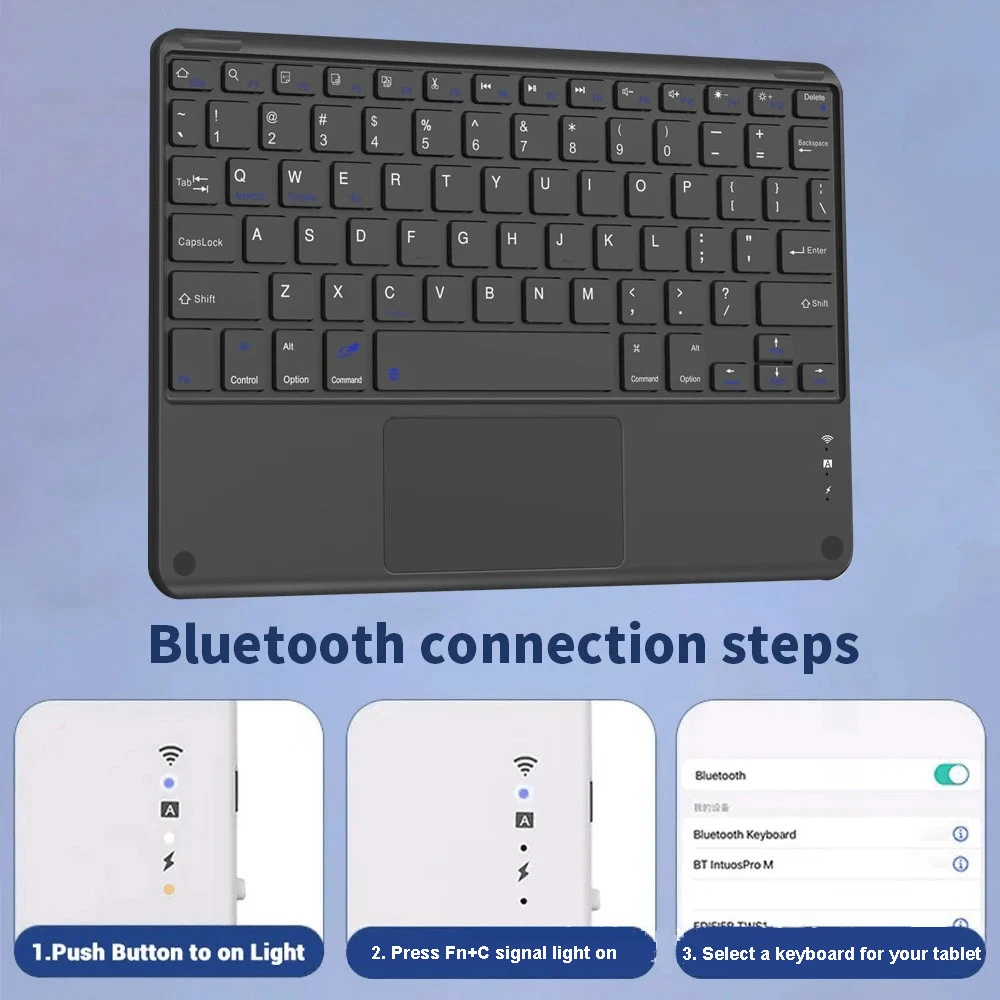
How to connect keyboard & Mouse?
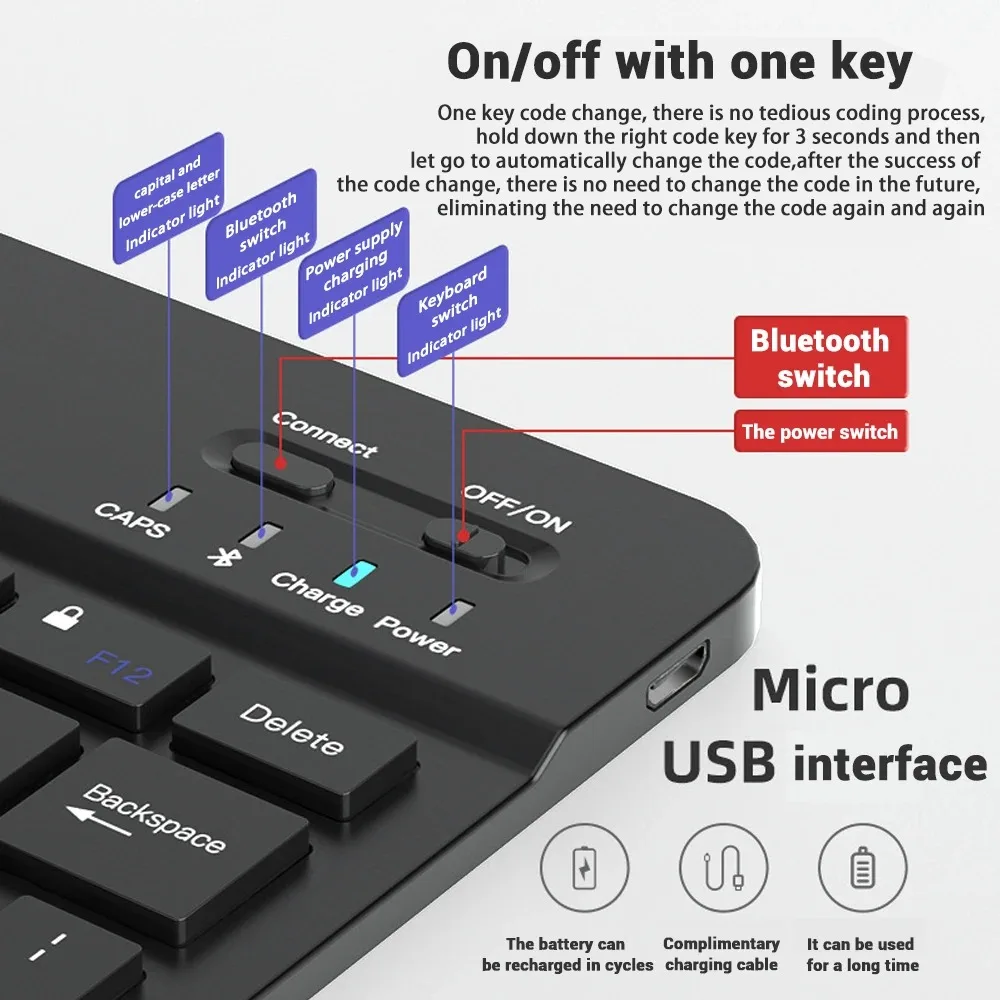
1,Connect the mouse first, then connect the keyboard.
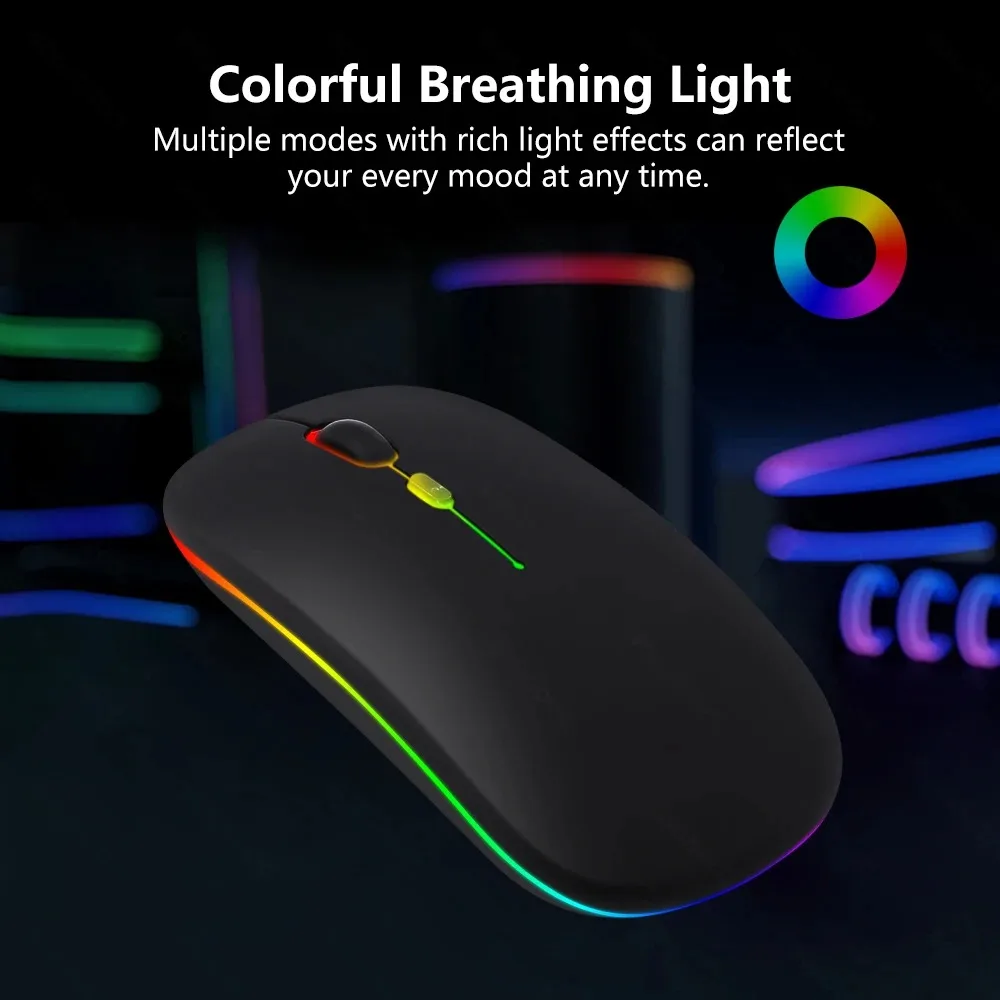
2,Mouse:Push the switch to the "Bluetooth" icon, find the Bluetooth connection with "Mouse" in the device Bluetooth list.
3,Normal Keyboard:Push the switch in the upper right corner to "ON", press "Connect", and find the Bluetooth connection with "Keyboard" in the device Bluetooth list.
4,Touchpad Keyboard:turn on keyboard ,press Fn+C to,then find the Bluetooth connection with "Keyboard" in the device Bluetooth list.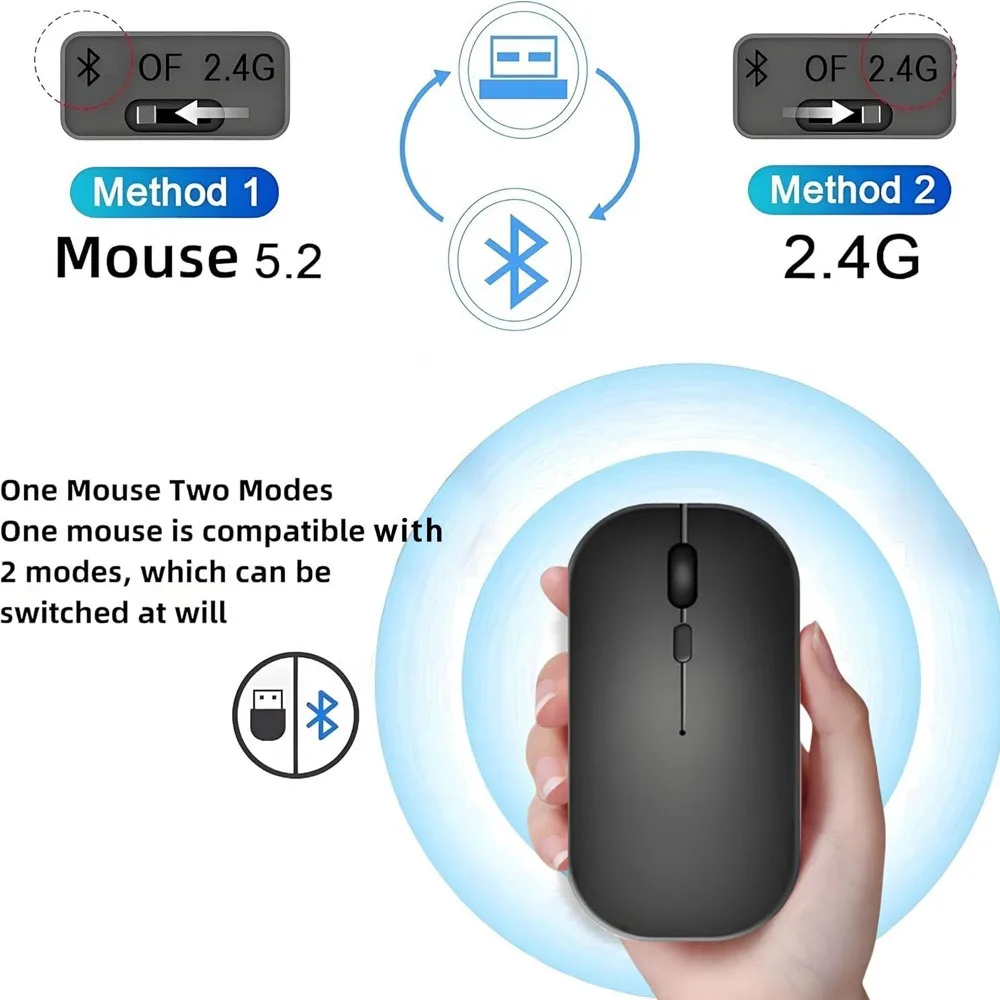
Non-touch keyboard Bluetooth connection steps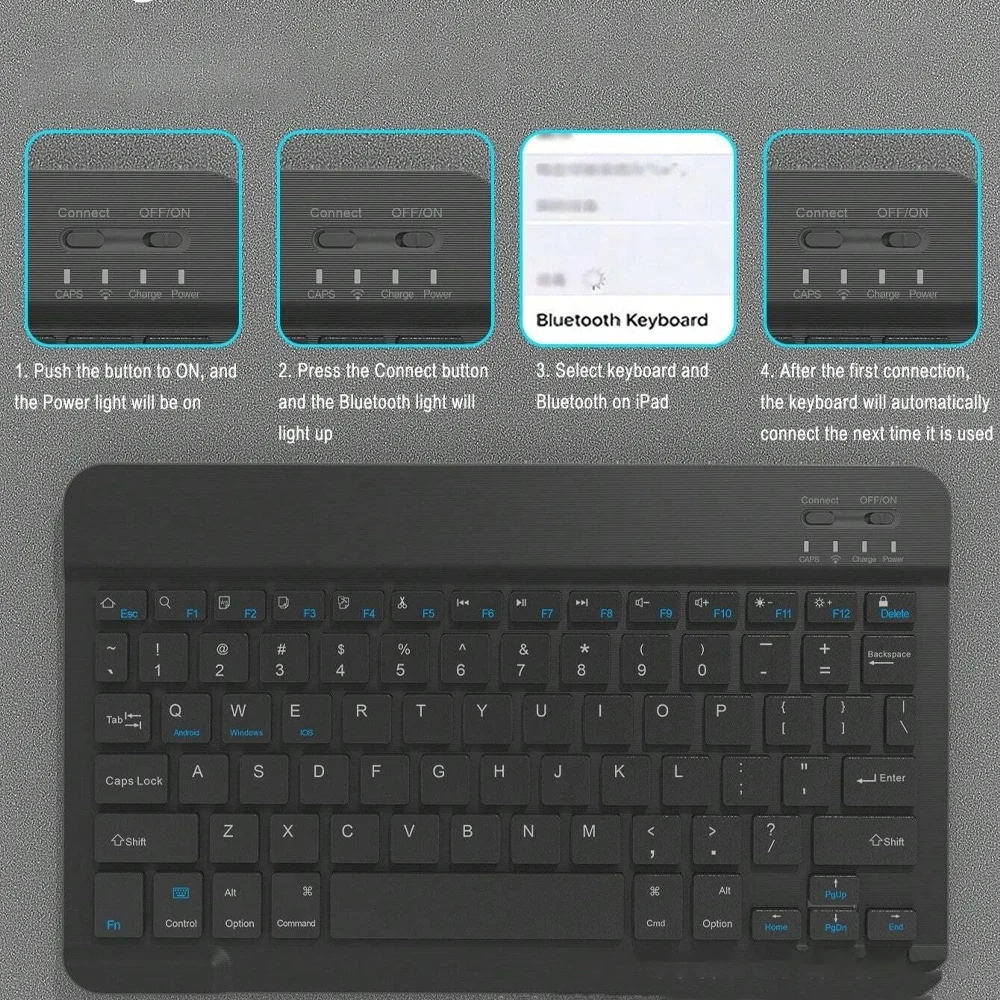 Touch keyboard Bluetooth connection steps
 FAQ
Q:What should I pay attention to when connecting the mouse for the first time?
A:When the mouse is connected for the first time, you need to press the left button, the right button and the scroll wheel at the same time for about 3-5 seconds.
Q: Is the scroll direction of the mouse USB connector and Bluetooth connection the same?
A: No, they are different. When using the USB connector, the scroll wheel slides in the same direction as the computer mouse. Bluetooth connection is the opposite.
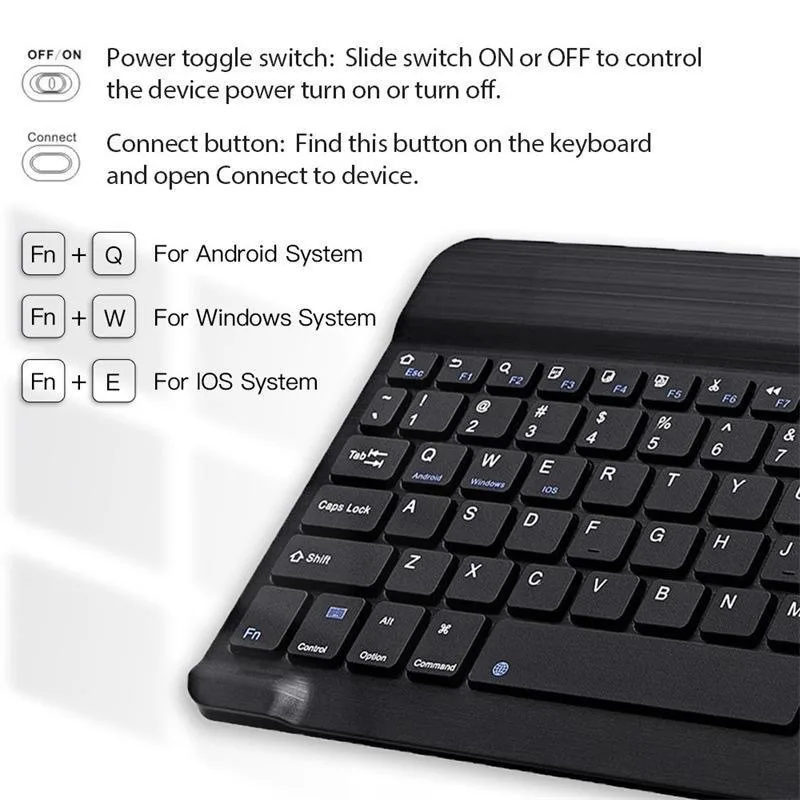
Q: How to switch between different systems?
A: Fn+Q=Android, Fn+W=Windows, Fn+E=IOS.
Please note that please switch the system before connecting the tablet.
Q:The bluetooth keyboard letters are messy?
A: Please check the settings according to the prompts,
a. Check whether the keyboard language set on the device is English.
b. Disconnect the keyboard Bluetooth, click Ignore the connected device, reopen the Bluetooth keyboard, select system, Fn+E (IOS system).
Note: Fn+Q=Android, Fn+W=Windows, Fn+E=IOS
c. Press the L S Z buttons at the same time to reset the keyboard
Q:How to configure the input method for different languages keyboard?
A:Take the samsung tablet as example,open "Settings--"ystem"--"Language & input"--"Add New Keyboard". (For other systems, please set them in the system settings according to the tips of the iPad example.)
Q:How does the mouse change teh scroll wheel sliding direction on the device?
A: The mouse is connected, open "General" - "Trackpad & Mouse" - close "Natural Scrolling".