


Free shipping
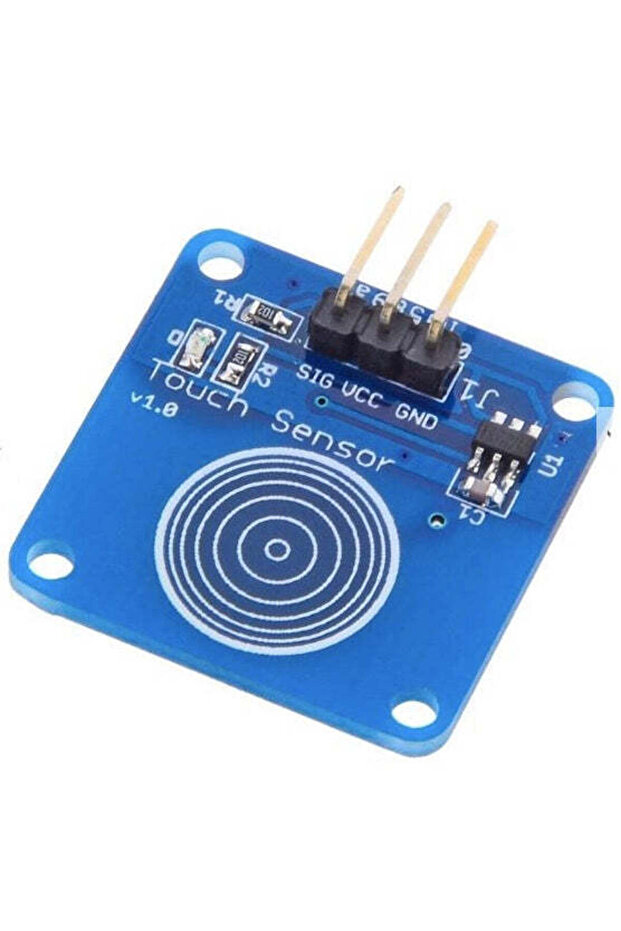
Generic 2D28 Touch Sensor Module Capacitive Touch Switch Module TTP223B
No reviews yet.
33
AED
(incl. VAT)
Delivery address
Free shipping
Local delivery
Estimated delivery: 22 - 24 October
Select your address, find out the delivery date!
Trendyol's commitments
Easy and free return in 15 days.
Payment methods


Highlighted features:
Generic 2D28 Touch Sensor Module Capacitive Touch Switch Module TTP223B features
Other Features
Low power consumption, Can replace the traditional key, With four M2 screw holes, easy for operation
Instructions for Use/Warnings
Do not cover thin sheets (metal) on the surface of the module.
Blue PCB Electronics
7.8
Seller information
Shoppers also viewed




 Collage Series 13 - the Islamic Notebook That Will Make God Pleased with You (with Verses and Hadiths)










Generic 2D28 Touch Sensor Module Capacitive Touch Switch Module TTP223B reviews
No reviews yet.
Product details

Product description
Description This is jog type capacitive touch switch sensor module based on a touch detection IC TTP223B.
Normally, the output is low level(at mode of low power consumption).
When the finger touch the corresponding location, output will be high(at quick speed mode).
When the module do not be touched for 12 seconds, the mode would switch to low-power mode.
It can be installed in the module, such as plastic, glass, non-metallic material surface.
But not cover thin sheets(metal) on the surface of the module.
Just touch the correct position, it can be hidden in walls, desktops and other parts to be buttons.
Allows you to remove the troubles of conventional push-type buttons Features Low power consumption Can replace the traditional key With four M2 screw holes, easy for operation Specifications Operating voltage: DC 2.0V ~ 5.5V VOH: VCC 0.8V VOL: VCC 0.3V Sink current: 8mA @ VCC = 3V, VOL = 0.6V Source current: -4mA @ VCC = 3V, VOH = 2.4V Response time: 220ms (at mode of low power consumption) and 60ms (at quick speed mode) Size: 24 x 24 x 7.2mm Package included: 1 x Capacitive jpg type touch sensor module Usage Hardware components Arduino Uno R4 or R3 board * 1 Touch Sensor Module * 1 Jumper Wires Circuit Assembly Code // Define the pin used for the touch sensor const int sensorPin = 7
void setup() { pinMode(sensorPin, INPUT)
// Set the sensor pin as input pinMode(LED_BUILTIN, OUTPUT)
// Set the built-in LED pin as output Serial.
begin(9600)
// Start the serial communicatio } void loop() { if (digitalRead(sensorPin) == 1) { // If the sensor is touched digitalWrite(LED_BUILTIN, HIGH)
// Turn on the built-in LED Serial.
println("
Touch detected!"
} else { digitalWrite(LED_BUILTIN, LOW)
// Turn off the built-in LED Serial.
println("
No touch detected.
"
} delay(100)
// Wait for a short period to avoid rapid reading of the sensor } Output Code Explanation Setting up the necessary variables.
We start by defining the pin number where the touch sensor is connected.
const int sensorPin = 7
Initialization in the setup() function.
Here, we specify that the sensor pin will be used for input, the built-in LED will be used for output, and we start the serial communication to allow messages to be sent to the serial monitor.
void setup() { pinMode(sensorPin, INPUT)
pinMode(LED_BUILTIN, OUTPUT)
Serial.
begin(9600)
} Continuously, the Arduino checks if the touch sensor is activated.
If touched, it turns on the LED and sends a “Touch detected!” message.
If not touched, it turns off the LED and sends a “No touch detected…” message.
A delay is introduced to prevent the sensor from being read too quickly.
void loop() { if (digitalRead(sensorPin) == 1) { digitalWrite(LED_BUILTIN, HIGH)
Serial.
println("
Touch detected!"
} else { digitalWrite(LED_BUILTIN, LOW)
Serial.
println("
No touch detected.
"
} delay(100)
Additional info
- Sold by .
- A maximum of 5 units of this product can be ordered. Trendyol reserves the right to cancel orders over 5 units.
- Barcode No: 2900000007840
Generic 2D28 Touch Sensor Module Capacitive Touch Switch Module TTP223B features
Other Features
Low power consumption, Can replace the traditional key, With four M2 screw holes, easy for operation
Instructions for Use/Warnings
Do not cover thin sheets (metal) on the surface of the module.
Safety information
Product safety information